

The queue
takes its own order.
A touch screen by the door with your menu on it. Customers order at their own pace and get a number and a ticket. Your staff get on with the food.
Every screen on this page is the real kiosk, used to place real orders at the sample shop.
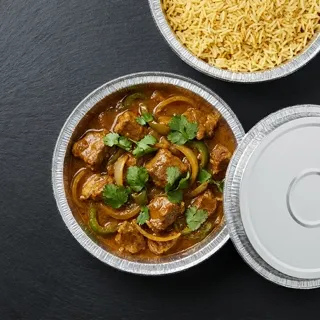
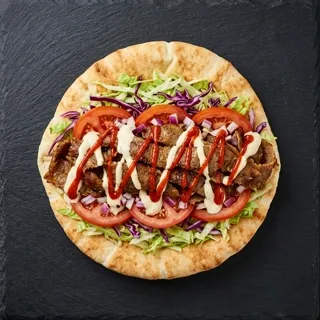
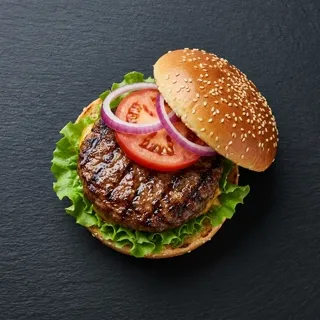

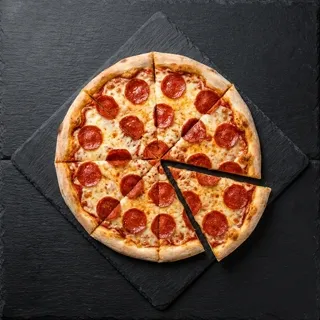
Five screens.
Then a number.
Keep scrolling and walk along the order, from the welcome screen to the ticket.
Hungry? Order here.
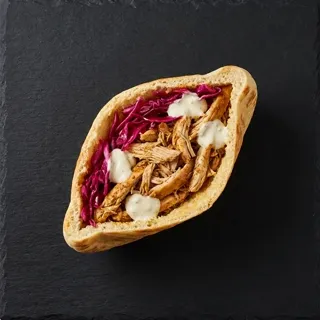
Your own dishes on the welcome screen, then one question: eating in, or taking away?
Built the way they want it
Spice, sides and extras on big buttons, with the price shown before they commit. The same rules as your website and your till.
No drinks yet? Add one.
The kiosk never forgets to ask. You decide what it suggests, and it only asks when it makes sense.
A name for the order
Optional, typed on the kiosk's own keyboard. It is called out with the number.
Number 21. Ticket in hand.
They get a number on the screen and a ticket in their hand, and the order is already on your till.
And out comes
the ticket.
This is what the kiosk printed for that order, line for line.
- The number, biggestThe same number the screen showed, the kitchen sees and the order board calls.
- Eat in or take awaySo whoever bags it knows without asking.
- Paid or not, in blackAn unpaid order says so across the ticket, so nothing leaves the counter by mistake.
Placed at the kiosk.
Already in the kitchen.
A kiosk order is an order like any other: on the till, on the kitchen screen and on the order board. These two were recorded at the same moment.
In the kitchen the same second
For everyone
who walks up to it.
A kiosk is used by strangers, unsupervised. It has to be kind to all of them and safe to leave alone.
Everything within reach
One button moves the whole screen to the lower half, for a wheelchair user or a child. It stays that way until they are finished.
Allergens on every dish
Each dish has an information button: what it contains and who it suits. The menu also asks anyone with an allergy to speak to staff before ordering.
Walked away? It clears itself.
After a minute of nothing, the kiosk asks if they are still there and counts down. Then the order is wiped, so the next person never inherits a stranger's basket.
Yours to set up.
Locked to everyone else.
- When the kitchen starts
- Straight away, or only once the order is paid. Your choice, for every kiosk.
- What it suggests
- Up to five rules of your own: no drink with a curry, suggest drinks. The first rule that fits is the one it uses.
- What is on the welcome screen
- Your popular dishes with photos, chosen for you, or up to six that you pick.
- Paired in a minute
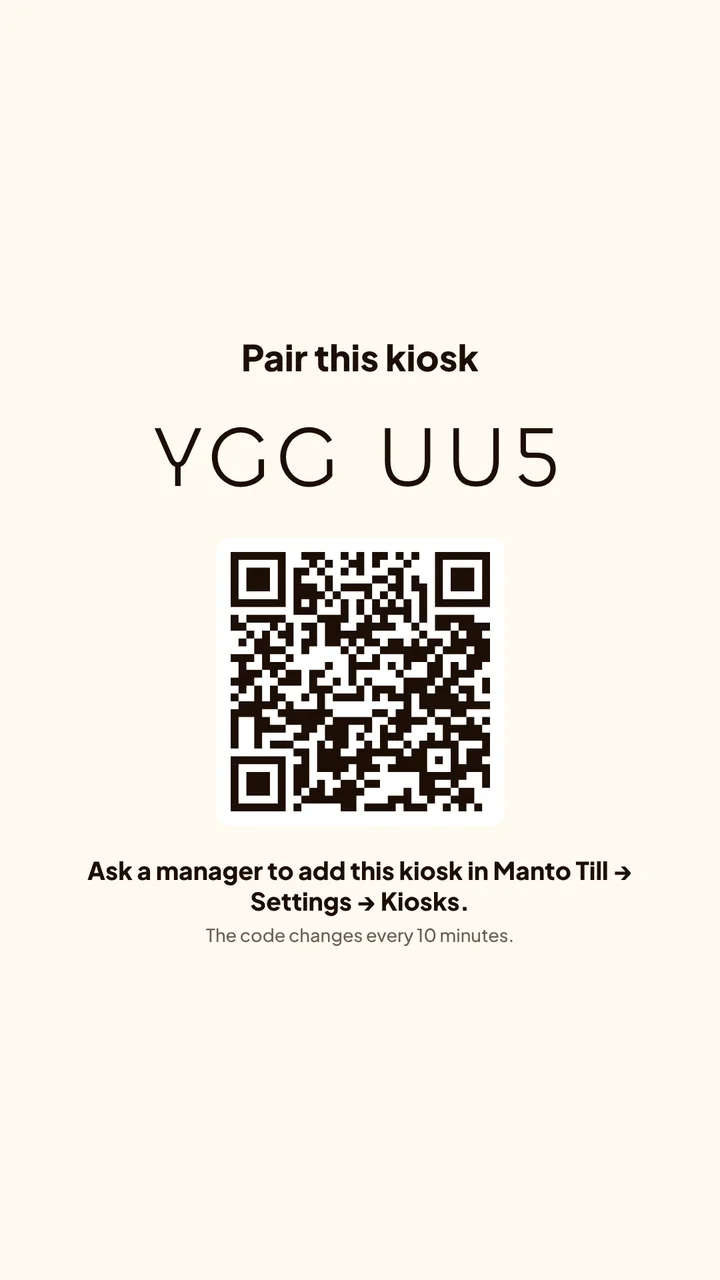
- The kiosk shows a code. Type it into the till under Settings, Kiosks, and it is yours.
- Print a test slip
- Reprint the last ticket
- Refresh the menu
- Pause ordering
- Check the device
- Unpair the kiosk
Everything it does.
All 23 things.
Ordering
- Welcome screen with your own food photos
- Eat in or take away
- Photo menu by category, with a Popular section
- Sizes, options and extras with a running price
- Half-and-half pizzas and build-your-own deals
- Suggestions you set, shown only when they fit
- Promo codes
- An optional first name for the order
- Order number on screen and on a printed ticket
For every customer
- Reach mode: the whole screen in the lower half
- Allergens and dietary suitability on every dish
- A prompt to speak to staff about allergies before ordering
- Start again from any screen
- Walk-away reset with a countdown
- Sold-out dishes marked as you mark them on the till
- Says so when the shop is closed or ordering is paused
For the shop
- Orders arrive on the till and the kitchen screen like any other
- Kitchen starts straight away, or after payment
- Unpaid tickets marked unpaid
- Paired from the till with a code
- A staff menu behind a manager's PIN
- Pause ordering at the kiosk
- Reprint the last ticket
The number on the ticket is the number on the wall. See the order board
Questions owners ask
That is your decision. You can have kiosk orders go to the kitchen straight away, or only once the order is paid.
No. It is the same menu as your website and your till, with the same prices, options, deals and allergens. Mark a dish sold out on the till and the kiosk shows it as sold out.
Yes. A button on every screen switches on reach mode, which moves everything to the lower half of the screen.
After a minute without a touch, the kiosk asks if they are still ordering and counts down. If nobody answers, it clears the order and goes back to the welcome screen.
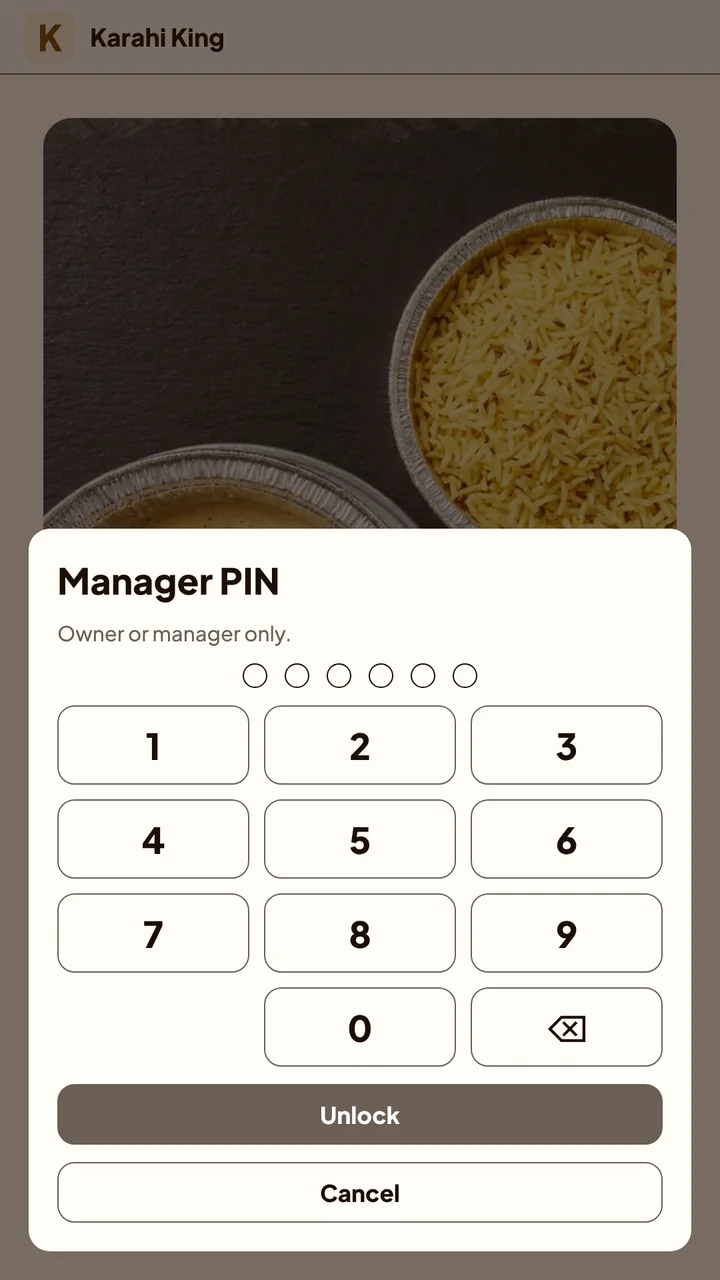
The staff menu opens only with an owner's or manager's PIN, and locks itself again after five minutes.