

Number 50,
your order is ready.
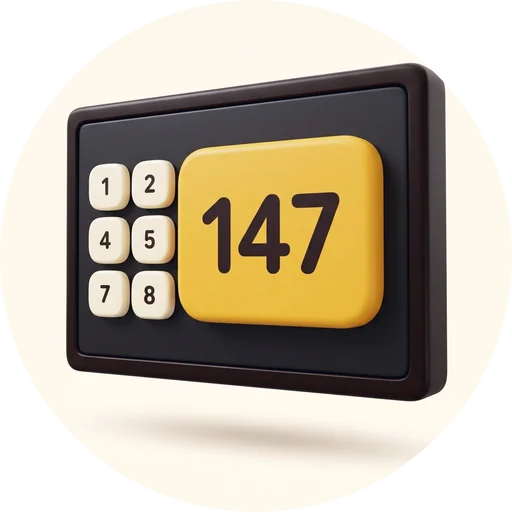
A screen for the wall that tells customers where their food is, so nobody has to lean over the counter and ask.
A chime, a spoken call, or silence. This is the real board, recorded as it ran.
On the wall.
In their hand.
The number on the receipt is the number on the board and the number on the customer's phone. These two screens were recorded at the same moment: watch number 50.
Your wall.
Your way round.
These are the same four choices the till gives you. Try them: every screen is the real board with that setting.
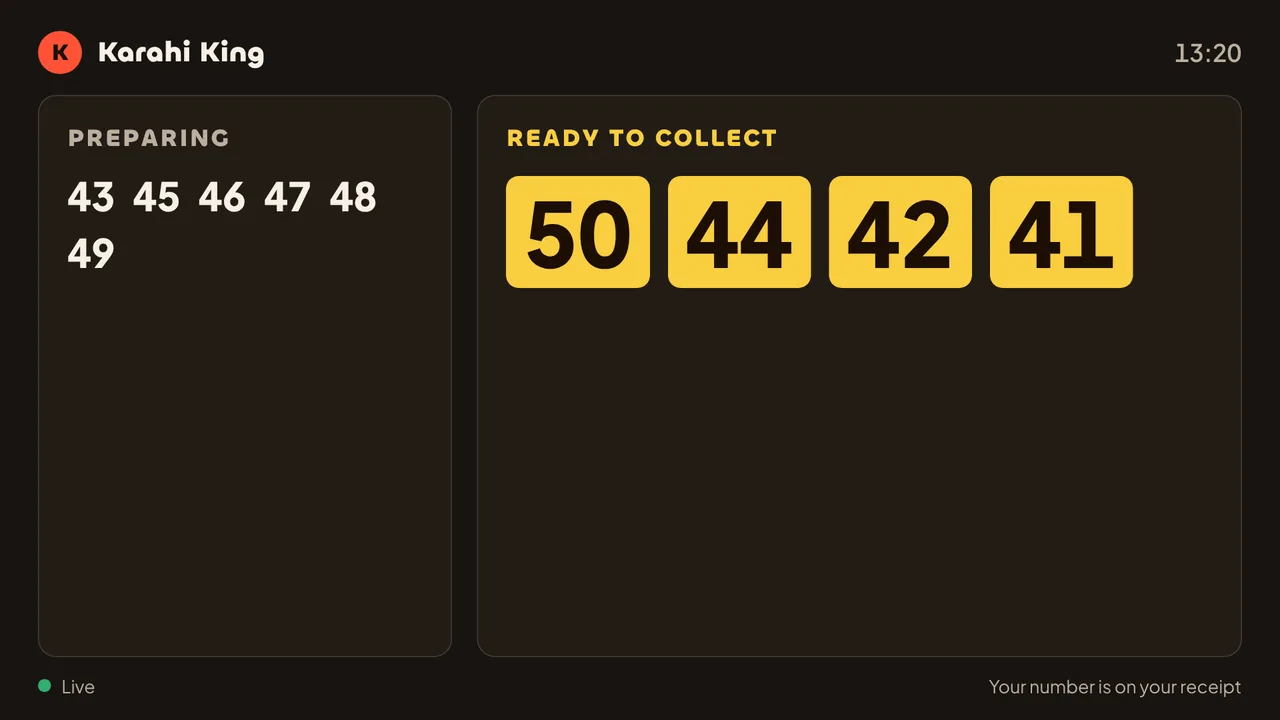
Ready first gives the numbers people are waiting for most of the screen.
Any TV. A six-character code.
That is the whole job.
No special box and nothing to install. Here is a television being paired, with the till beside it.
- 1
Open the board on the TV
Any smart TV, TV stick or tablet with a web browser. It shows a six-character code and a QR code.
- 2
Type the code into the till
Settings, Order boards, Add an order board. Or scan the QR code with a phone that is signed in to the till.
- 3
It is live
The screen swaps to your shop's name, logo and tonight's orders. Nothing to install and nobody to call.
Four things that keep it on all shift
The till tells you these once the screen is paired. They are about the television, not about us.
- Turn off the TV's auto-standby. UK TVs switch off after four hours by default.
- Turn off “no signal” sleep.
- Set the TV to power on to the stick's input.
- Use a wired connection or strong wifi.
Built for a wall,
not a desk.
Nobody is sitting in front of it to fix it. So it looks after itself, and it never shows a customer something it is not sure of.
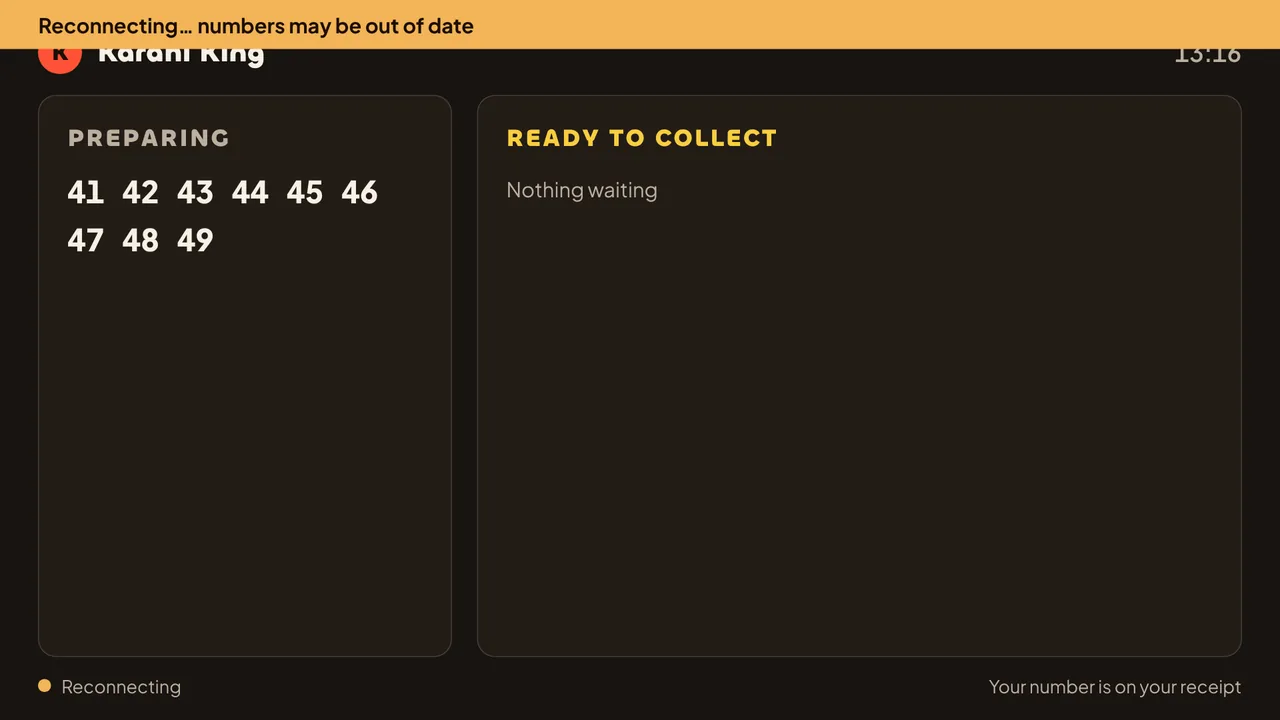
It says so when it is behind
If the connection drops, the numbers stay up and a bar across the top warns they may be out of date. If it stays down, the board tells customers to ask at the counter. It reconnects by itself.
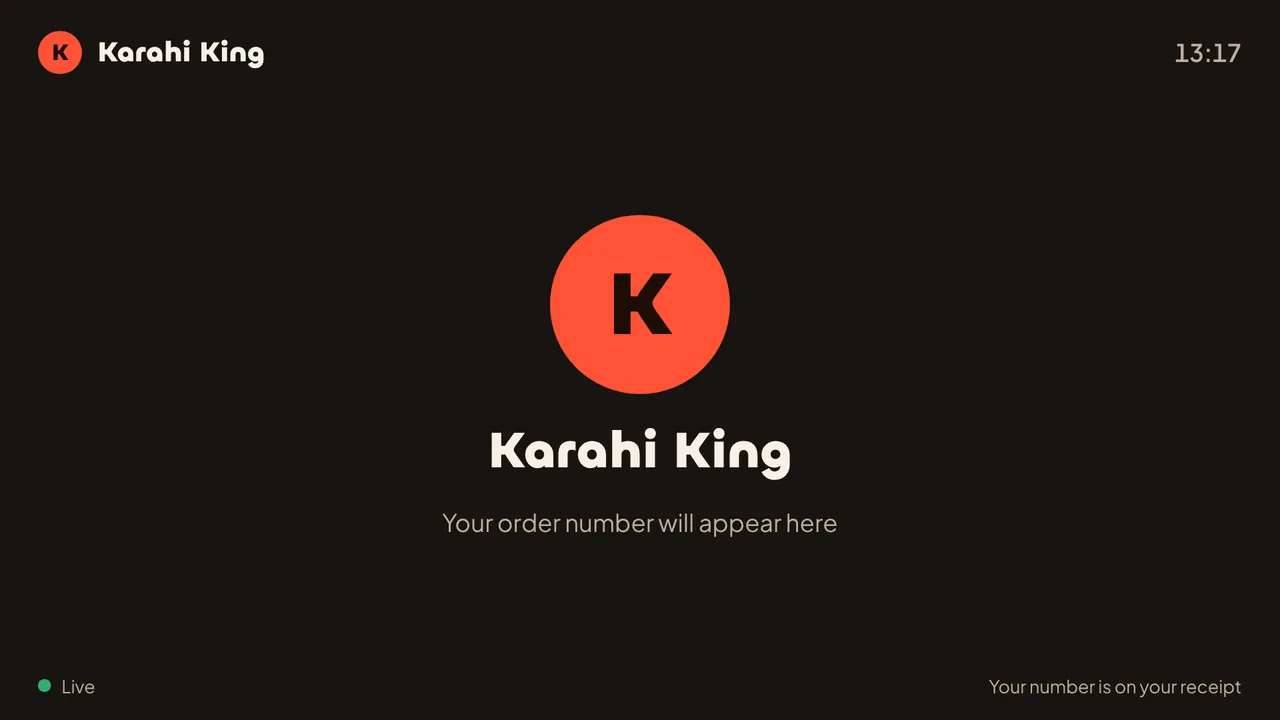
Quiet moments look deliberate
With nothing cooking, the board shows your logo and your name rather than an empty grid.
Change your mind from behind the counter.
Names on, light colours, equal columns: change a board's settings on the till and save. The screen on the wall follows within seconds, with nobody climbing up to it.
Everything it does.
All 21 things.
On the screen
- Preparing and Ready to collect, side by side
- The same number as the receipt and the customer's phone
- A first name beside the number, if you want it
- Your shop's name and logo
- Dark or light
- Ready first, or equal columns
- Landscape, or portrait for a TV on its side
- Numbers resize to fit; a long list turns its pages
When an order is ready
- Moves to Ready the moment the kitchen marks it done
- A chime, a spoken call, or silence
- The customer's phone changes at the same time
- Leaves the board when it is collected
- Ready orders clear after 5 to 30 minutes, your choice
Running it
- Runs in a web browser: smart TV, TV stick or tablet
- Paired from the till with a code or a QR code
- Settings changed on the till reach the screen in seconds
- Collection orders always show
- Counter eat-in and delivery orders shown or hidden
- Warns when it is reconnecting, and recovers by itself
- Up to ten boards in one shop
- The till shows whether each board is live
The board follows the kitchen screen. See the kitchen screen
Questions owners ask
A screen with a web browser. A smart TV, a TV stick plugged into any television, or a spare tablet all work. The board is a web page, so there is nothing to install.
It is the order number on their receipt. Customers who ordered online also see it on their phone, as their collection number, from the moment the order is accepted.
Yes. Choose a chime, a spoken call (“Number 50, your order is ready”) or silence. A spoken call needs a screen whose browser can speak; where it cannot, the board chimes instead.
Collection orders always do. You choose whether eat-in orders collected at the counter and delivery orders show too, which is handy for drivers waiting for bags. Orders served to a table never show.
The numbers stay on the screen with a warning that they may be out of date. If the connection stays down, the board asks customers to check at the counter, and it reconnects by itself when the internet is back.
Up to ten in a shop, each with its own settings. One by the counter in landscape and one in the window in portrait, for example.